
If you're a React developer, you probably spend a lot of time developing and testing your web applications on your local machine. However, when it comes to accessing your React app from a mobile device, you might run into some challenges. In this article, I'll show you a few methods to access your React app on any device, making the testing process more convenient.
1. Using Your Local IP Address
Check your IP address using ifconfig, while on Windows, you can use ipconfig. The IP address you find is the address of your computer, and when your React app is running, accessing it via "localhost" will refer to your local machine. This means that if you try to access your app from a mobile device, it will point to the mobile device itself, not your development machine.
To access your React app from a mobile device, you need to replace "localhost" with your computer's IP address.
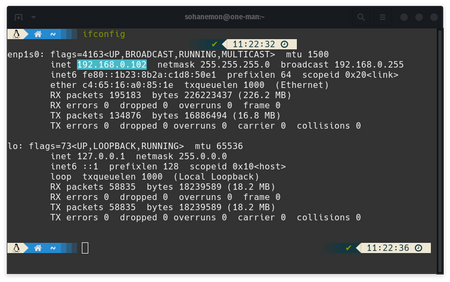 For example, if your IP address is 192.168.1.102, you can access your app using:
http://192.168.1.102:3000/And if you are using vite then you can simply run npm run dev --host
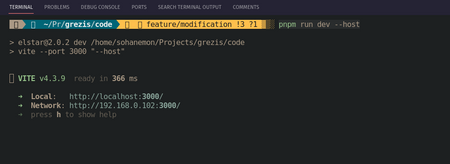 !
!
2. Using ngrok
Another handy tool for exposing your local development server to the internet and accessing it on your mobile device is ngrok. Ngrok creates a secure tunnel to your local server, making it accessible from anywhere. Here's how you can use ngrok:
-
First, make sure you have ngrok installed. You can download it from ngrok's official website.
-
If your React app is running on port 3000, you can use the following command to expose it via ngrok:
ngrok http 3000Ngrok will provide you with a public URL that you can visit from your phone. The great thing about ngrok is that it ** automatically updates** the URL whenever you make changes to your React app, saving you the trouble of updating it manually.
3. Using Localhost.run
Ngrok isn't the only tool available for tunneling your local server. An alternative is localhost.run. To use it, follow these steps:
-
Make sure you have
SSH(Secure Shell) installed on your local machine. -
In your terminal, run the following command:
ssh -R 80:localhost:3000 ssh.localhost.run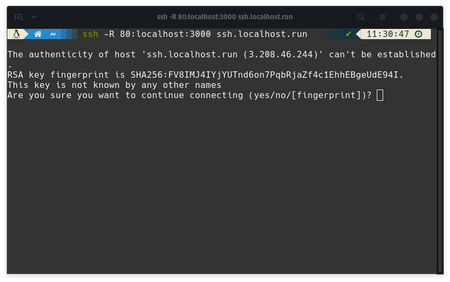
- This command sets up a tunnel, and localhost.run will provide you with a public URL that you can access from your mobile device.
By following these methods, you can easily achieve local development without much hassle. Whether you choose to use your local IP address, ngrok, or localhost.run, the choice is yours, and it ultimately depends on your specific needs and preferences. Happy mobile testing!